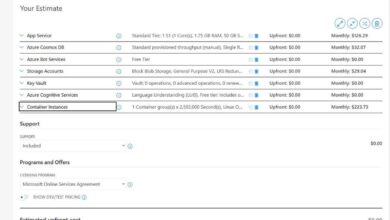
Managing cloud costs doesn’t have to be a guessing game. With the Azure Cost Calculator, you can predict, plan, and optimize your Microsoft Azure spending with precision and confidence—saving time, money, and stress.






What Is the Azure Cost Calculator?

The Azure Cost Calculator is an essential online tool provided by Microsoft that allows businesses, developers, and IT decision-makers to estimate the monthly cost of running services on Microsoft Azure. It’s designed to help users model their cloud infrastructure and understand potential expenses before deploying any resources.
How the Azure Cost Calculator Works
The tool operates on a simple yet powerful principle: you select the Azure services you plan to use—such as virtual machines, storage, databases, networking, and more—and configure them with real-world parameters like region, instance size, usage hours, and data transfer volume. Based on these inputs, the calculator generates a detailed cost estimate.
- Users can add multiple services to a single estimate.
- Configurations can be saved and shared across teams.
- Estimates are updated in real-time as changes are made.
This dynamic modeling capability makes the Azure Cost Calculator an indispensable resource during the planning phase of any cloud migration or new project.
Differences Between Azure Cost Calculator and Total Cost of Ownership (TCO) Tool
While both tools help estimate cloud costs, they serve different purposes. The Azure TCO Tool compares on-premises infrastructure costs with moving to Azure, focusing on long-term savings and migration benefits. In contrast, the Azure Cost Calculator is more granular, focusing on specific Azure services and their direct pricing.
“The Azure Cost Calculator gives you line-item visibility into what you’ll pay for each service, making it ideal for technical teams building actual architectures.” — Microsoft Azure Documentation
Understanding this distinction ensures you use the right tool at the right stage of your cloud journey.
Why Use the Azure Cost Calculator?
One of the biggest challenges in cloud computing is cost unpredictability. Without proper planning, cloud bills can spiral out of control. The Azure Cost Calculator empowers organizations to take control of their spending by providing transparency and foresight.
Prevent Budget Overruns
By simulating your Azure environment before deployment, you can identify expensive configurations early. For example, choosing a high-memory VM when a smaller instance would suffice can double your monthly bill. The calculator highlights these inefficiencies, allowing you to adjust before spending a single dollar.
- Simulate peak usage scenarios.
- Compare different VM families and sizes.
- Model auto-scaling behavior to estimate variable costs.
This proactive approach is critical for startups and enterprises alike, where budget constraints are tight and accountability is high.
Support Accurate Financial Planning
Finance and procurement teams need reliable data to approve cloud initiatives. The Azure Cost Calculator generates professional, exportable estimates that can be included in business cases, funding requests, and IT budgets.
These estimates can be broken down by service, region, or department, enabling chargeback and showback models within large organizations. This level of detail strengthens internal governance and aligns cloud spending with strategic goals.
Step-by-Step Guide to Using the Azure Cost Calculator
Using the Azure Cost Calculator is straightforward, but mastering it requires understanding its features and best practices. Follow this step-by-step process to build accurate and useful cost models.
Step 1: Access the Calculator
Visit the official Azure pricing calculator page. No login is required to start building estimates, though signing in with a Microsoft account allows you to save and share your projects.
- The interface is clean and intuitive.
- Search bar lets you quickly find services by name.
- Categories include Compute, Storage, Networking, Databases, AI, and more.
Once you’re on the site, you’re ready to start adding resources.
Step 2: Add and Configure Azure Services
Click on any service to add it to your estimate. For example, if you need virtual machines, search for “Virtual Machines” and select the appropriate OS (Windows or Linux), region, series (e.g., Dv3, Ev4), and instance size.
You’ll also configure:
- Number of instances
- Hours of usage per month (e.g., 730 for 24/7 operation)
- Storage type and size (SSD, HDD, etc.)
- Operating system licensing (pay-as-you-go vs. Azure Hybrid Benefit)
Each selection updates the total cost in real time, giving immediate feedback on pricing impact.
Step 3: Refine and Optimize Your Estimate
After adding core services, refine your model by including supporting components like:
- Public IP addresses
- Load balancers
- Data transfer costs (especially for outbound traffic)
- Backup and disaster recovery solutions
Don’t overlook these “hidden” costs—they can add up quickly. The calculator makes them visible, helping you avoid surprises later.
“A common oversight is ignoring egress fees. Transferring 10 TB of data out of Azure per month can cost hundreds of dollars depending on destination region.” — Cloud Economics Expert, Gartner
Use the “Compare” feature to test different architectures. For instance, compare a VM-based web app versus an Azure App Service deployment to see which is more cost-effective.
Key Features of the Azure Cost Calculator
The Azure Cost Calculator is more than just a price lookup tool. It offers several advanced features that enhance its utility for technical and financial teams.
Real-Time Cost Updates
As you modify configurations—such as changing VM size or increasing storage—the total cost updates instantly. This interactivity allows for rapid iteration and what-if analysis.
- Instant feedback helps teams make informed trade-offs.
- Great for workshops and design sessions.
- Encourages cost-aware architecture decisions.
This feature is particularly useful during sprint planning or cloud design reviews.
Export and Sharing Capabilities
Once your estimate is complete, you can export it as a CSV or PDF file. This is invaluable for documentation, presentations, and stakeholder communication.
You can also share a direct link to your estimate with colleagues, who can view or edit it if you grant permission. This fosters collaboration between developers, architects, and finance teams.
“We use shared cost estimates as part of our change advisory board (CAB) process. It ensures everyone understands the financial impact of new services.” — IT Director, Mid-Sized Enterprise
Integration with Azure Pricing APIs
For organizations building custom cost management tools, Microsoft provides Pricing APIs that expose the same data used in the calculator. This allows automation of cost estimation within CI/CD pipelines, provisioning workflows, or internal portals.
Developers can pull real-time pricing data and integrate it into their own applications, ensuring consistency across tools.
Common Mistakes When Using the Azure Cost Calculator
Even experienced users can make errors that lead to inaccurate estimates. Being aware of these pitfalls can significantly improve the reliability of your cost modeling.
Ignoring Data Transfer Costs
One of the most frequent oversights is underestimating or omitting data egress fees. While inbound data is free on Azure, outbound data (especially to the internet or other regions) incurs charges.
- Egress costs vary by destination region and volume.
- First 5 GB per month are free for most regions.
- Costs increase incrementally after thresholds.
Always include realistic data transfer assumptions in your model, especially for content delivery, API services, or hybrid cloud scenarios.
Overprovisioning Virtual Machines
It’s tempting to choose large VM sizes “just to be safe,” but this habit can inflate costs unnecessarily. Use the calculator to compare smaller instances and evaluate performance trade-offs.
Consider using Azure Monitor and performance baselines to right-size VMs accurately. The calculator supports this by letting you toggle between instance types and see price differences instantly.
Forgetting Reserved Instances and Savings Plans
The standard calculator shows pay-as-you-go pricing. However, committing to 1-year or 3-year terms via Reserved VM Instances or Savings Plans can reduce costs by up to 72%.
While the calculator doesn’t directly model savings from reservations, you can manually adjust the final estimate by applying known discount rates. For example, if a VM costs $100/month pay-as-you-go and you expect a 60% discount with a reservation, your estimated cost becomes $40/month.
“Always run two scenarios: one with pay-as-you-go pricing and another with reserved capacity assumptions.” — Cloud Financial Analyst, AWS & Azure Certified
Advanced Tips for Maximizing the Azure Cost Calculator
To get the most value from the Azure Cost Calculator, go beyond basic usage and apply advanced strategies that reflect real-world complexity.
Model Multi-Region Deployments
If your application requires high availability across regions, use the calculator to build separate estimates for each region and sum them. This helps you understand the true cost of geo-redundancy.
- Compare pricing differences between regions (e.g., East US vs. West Europe).
- Include cross-region data transfer costs.
- Factor in additional management overhead.
Some services are cheaper in certain regions, so this analysis can influence your deployment strategy.
Incorporate Serverless and PaaS Options
Don’t default to VMs. Use the calculator to compare Infrastructure-as-a-Service (IaaS) with Platform-as-a-Service (PaaS) alternatives like Azure Functions, Logic Apps, or App Services.
For example, a serverless function might cost pennies per execution versus a constantly running VM. The calculator lets you input expected execution counts and memory usage to estimate total cost.
“We migrated a background job processor from VMs to Azure Functions and reduced costs by 85%. The calculator helped us prove the savings before migration.” — DevOps Lead, SaaS Company
Use Tags for Cost Allocation
While the calculator doesn’t enforce tagging, you can annotate your estimates with tags like ‘environment=production’, ‘department=marketing’, or ‘project=CRM’. This prepares your team for actual Azure cost management using Azure Cost Management + Billing.
Later, when actual costs are reported, you can compare them against tagged estimates to measure accuracy and identify variances.
Integrating the Azure Cost Calculator into Your Cloud Strategy
The Azure Cost Calculator shouldn’t be a one-off tool used during initial planning. Instead, integrate it into your ongoing cloud governance and financial operations.
Make It Part of Your Architecture Review Process
Require all new Azure deployments to include a cost estimate generated with the calculator. This creates a culture of cost accountability and ensures financial impact is considered alongside technical design.
- Include cost estimates in architecture decision records (ADRs).
- Review estimates during sprint planning for cloud projects.
- Use them to justify technology choices (e.g., SQL Database vs. Cosmos DB).
This practice aligns engineering and finance teams, reducing friction and improving transparency.
Combine with Azure Cost Management + Billing
The calculator is a planning tool; Azure Cost Management + Billing is for monitoring. Use both together for a complete cost lifecycle.
After deployment, compare actual costs in Cost Management with your original estimate. Analyze discrepancies—was usage higher than expected? Did you forget a service? Use these insights to improve future estimates.
“We reduced cloud overspending by 30% within six months just by comparing calculator estimates with actual bills and adjusting our models.” — CFO, Tech Startup
Train Teams on Cost-Aware Development
Empower developers and architects with training on how to use the Azure Cost Calculator effectively. Host workshops where teams build cost models for sample applications.
Teach them to ask: “How much will this feature cost to run?” This mindset shift leads to more efficient, cost-optimized applications.
What is the Azure Cost Calculator?
The Azure Cost Calculator is a free online tool from Microsoft that helps users estimate the monthly cost of running Azure services. It allows you to configure virtual machines, storage, databases, networking, and more to get a detailed cost projection before deployment.
Is the Azure Cost Calculator accurate?
Yes, the Azure Cost Calculator uses real-time pricing data from Microsoft Azure, making it highly accurate for planning purposes. However, it shows pay-as-you-go rates and doesn’t automatically include discounts from Reserved Instances or Savings Plans, which you must account for manually.
Can I save and share my cost estimates?
Yes, you can save your estimates by signing in with a Microsoft account. You can also export estimates as CSV or PDF files and share a link with team members for collaboration.
Does the Azure Cost Calculator include data transfer costs?
Yes, the calculator includes data transfer costs. You can specify outbound data transfer amounts and destinations to get accurate egress fee estimates, which are often overlooked but can significantly impact total cost.
How is the Azure Cost Calculator different from Azure Total Cost of Ownership (TCO) Tool?
The Azure Cost Calculator focuses on estimating the cost of specific Azure services, while the TCO Tool compares on-premises infrastructure costs with moving to Azure. The TCO Tool is ideal for migration planning, while the Cost Calculator is best for detailed service-level budgeting.
Mastering the Azure Cost Calculator is a critical step toward achieving cloud financial discipline. It transforms cost estimation from guesswork into a data-driven process, enabling smarter decisions, better budgeting, and greater accountability. By integrating it into your cloud workflow—from initial design to ongoing optimization—you gain control over your Azure spending and unlock significant savings. Whether you’re a developer, architect, or finance leader, this powerful tool empowers you to build cost-efficient, scalable, and sustainable cloud solutions.
Further Reading: